Version 1.5.1 Chrome or Edge on a desktop computer.
No installation needed.
Setup & test notes
Pause or quit the companion first. Connect Softpad to its OTG USB port, then choose Connect pad. Export a backup before making changes. Write to pad saves them. Disconnect the browser before restarting the companion.
Testing: The maker confirmed backup downloads, changes and restoring settings in Chrome. Device tests in Edge are still unconfirmed. Backups and saved profiles belong to one browser and website address; export a backup before changing either.
Version 1.5.1 macOS 13+ target · Apple Silicon or Intel.
Not notarized. macOS may block opening.
Setup & test notes
Unzip the download and move Softpad Companion.app to Applications. Open it; its icon appears in the menu bar. Choose Customize keys to pause the app and open the configurator. Use Chrome or Edge. After Disconnect in the browser, choose Resume companion. If macOS blocks the app, send the message through Tindie.
Testing: Built on macOS 27.0.1 with Apple Silicon. Both processor versions and the local signature were checked. It has no Apple Developer ID signature or notarization. Intel, installation on a fresh Mac, and the new Customize/Resume steps have not been tested. The maker tested connection, Copy/Paste and USB reconnect with version 1.5.0; those tests have not been repeated for 1.5.1.
Version 1.5.1 Windows 11, 64-bit · .NET Framework 4.8+.
Unsigned. Windows may show a warning.
Setup & test notes
Use Extract All, then run SoftpadCompanion.exe from the extracted folder. Its icon appears in the system tray. Choose Customize keys to pause the app and open the configurator. Use Chrome or Edge. Disconnect in the browser to let the app reconnect. If Windows blocks the app, send the message through Tindie.
Testing: The maker tested app switching, General, keys shared across profiles, and USB reconnect with version 1.5.0. Version 1.5.1 adds the website link. That new menu step, installation on a fresh PC, and SmartScreen handling have not been tested. The app is unsigned.
Connect the included cable to the OTG port. This port handles keys and configuration. Use one USB cable at a time.
02
Set your keys
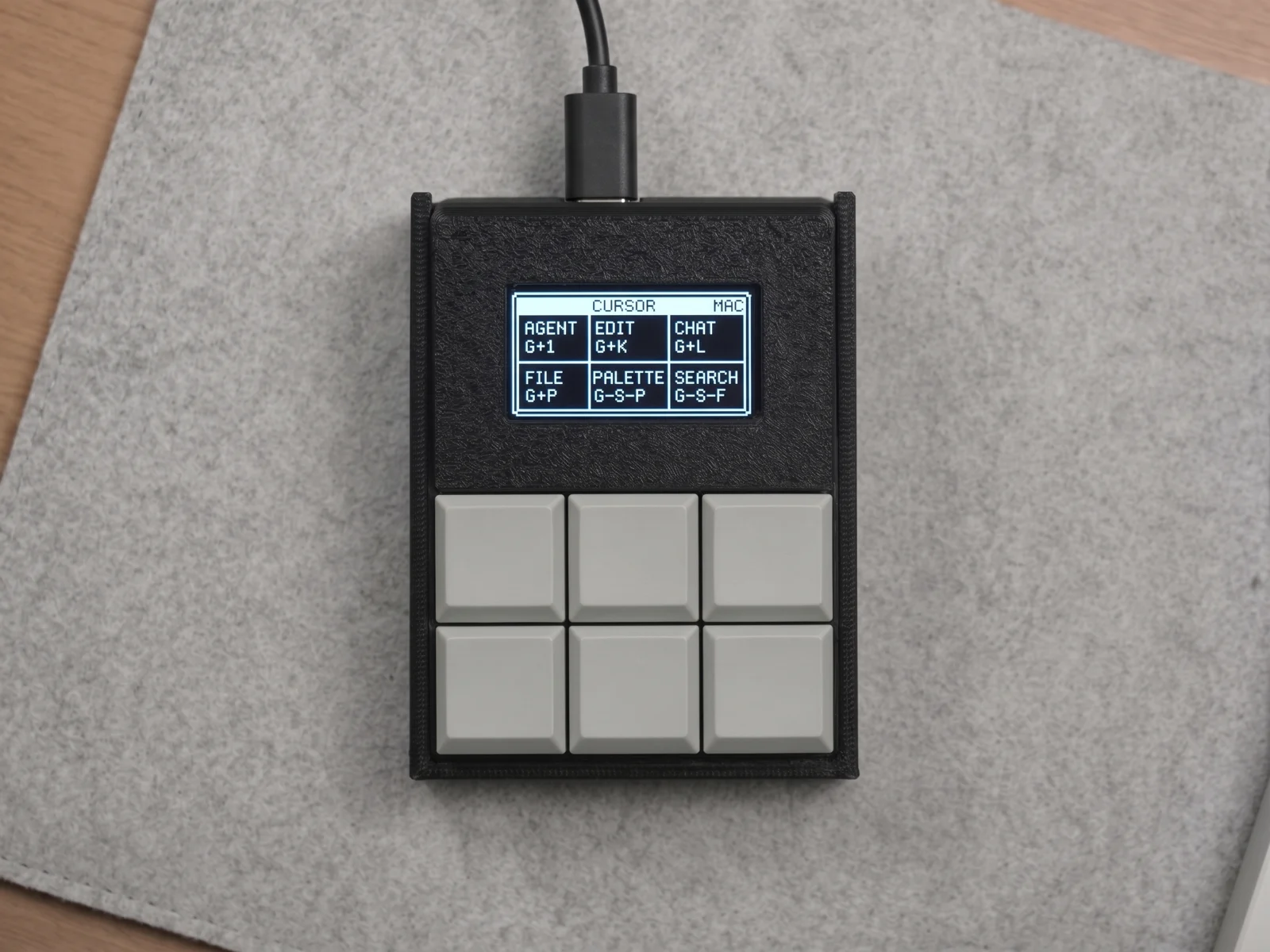
Open the configurator in Chrome or Edge on your computer. Pause or quit the companion, then choose Connect pad. Export a backup. Set your shortcuts and labels, then choose Write to pad.
03
Switch shortcuts between apps
Run the Mac or Windows companion. Export app rules from the configurator and import them into the companion. Apps without a rule use General. Keys set to Same on every layer work across all profiles.
Need help? Message Nuvko on Tindie ↗ with your computer, operating system and what went wrong. Tindie may ask you to sign in.
03 / Questions
FAQ
Answers about setup and use.
Does it need software running all the time?
No. Saved shortcuts work without the companion app. Keep the companion running if you want shortcuts to change when you switch apps.
Does the screen find commands automatically?
No. You choose the shortcuts and labels. Softpad does not find commands in your apps.
Which computers can I use?
The downloads are for Mac and Windows. Use Chrome or Edge on a desktop computer for configuration. Check the requirements and test notes above, or ask through Tindie before ordering.
Do I need to solder or assemble anything?
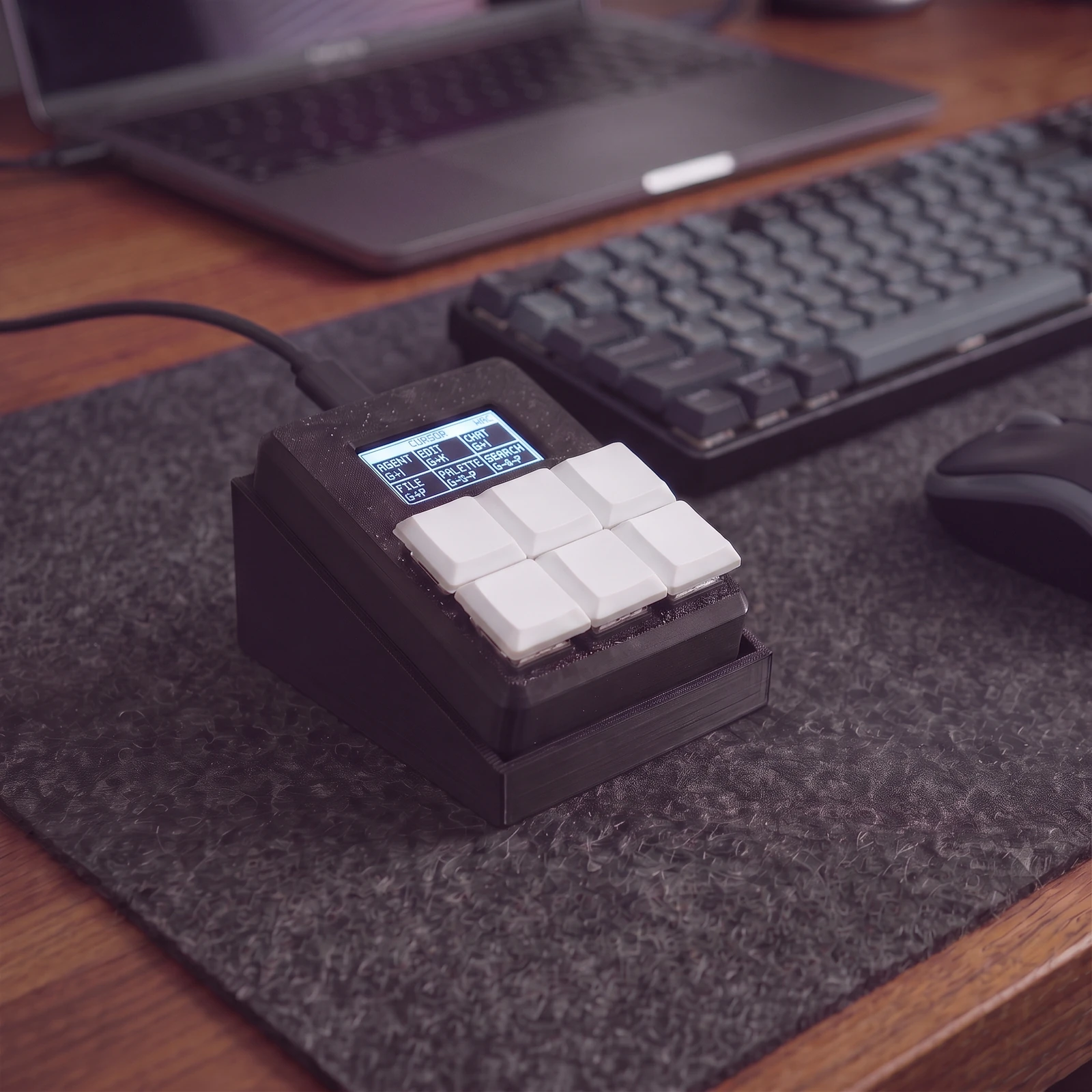
No. Softpad comes assembled, with a stand and USB cable. You set the shortcuts yourself. The 3D-printed case has visible texture and layer lines.
Where can I buy it or share feedback?
The Tindie listing is not open for orders yet. You can message Nuvko there with questions or feedback.